BABA
mail
The Computer Won't Turn On?
The
other day, I came home from work and wanted to check my Facebook and
E-mail. I made myself a cup of coffee and sat down at my computer,
pushed the power button and nothing happened…

I
tried a couple more times, then checked if it’s plugged into the wall –
nothing. I later discovered that it was relatively easy to fix, but I
had to ask a bunch of people until I managed to come up with a solution.
The whole ordeal got me thinking that, if this happened to me, it must
happen to many people. This is why I’ve created a simple guide to saving
one’s computer.
| |

| |
The computer won’t turn on
First,
you have to ascertain whether it is the computer that isn’t turning on,
or just the screen. Most computers today have cooling fans that make a
“fwoosh” noise when they’re working. If your computer is making that
noise, but the screen is still dark, click here for the screen section.
| |
Now that we know that the computer isn’t turning on, follow these steps:
Desktop
Check
to see if the computer is plugged into the power socket. (Make sure you
check both the outlet, and the computer itself, to see that the power
cord is indeed connected on both ends)
| |
|  |
|  |
|  |
|  |
If
the computer still won’t turn on, unplug it again, and check another
socket – one you know is working. (It’s possible that the power outlet
you’ve been using isn’t working)
|  |
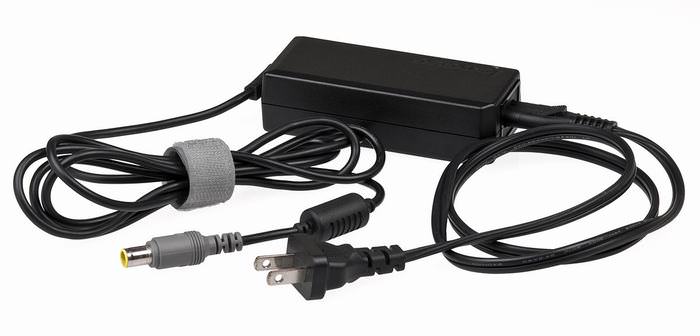
Laptop
| |
| |
|  |
| |
| |
If
during these steps you see or hear sparks or electrical flashes, or
happen to smell smoke, unplug the computer and get a technician.
| |
The computer turns on, then powers off(either instantly or within a couple of minutes)
 In a laptop,
this usually indicates that the battery is either drained or faulty. To
be sure, plug the laptop into the wall and see if the issue persists.
If it works, it means that the battery was drained, and if the problem
repeats whenever you unplug the laptop, it means that the battery is
faulty, and you may need to replace it. In a laptop,
this usually indicates that the battery is either drained or faulty. To
be sure, plug the laptop into the wall and see if the issue persists.
If it works, it means that the battery was drained, and if the problem
repeats whenever you unplug the laptop, it means that the battery is
faulty, and you may need to replace it. | |
 In a desktop,
it can mean that the computer is overheating and powering down to avoid
hardware damage, or that one or more hardware pieces are not working
properly. Usually, overheating occurs when an internal cooling fan isn’t
working, or that the computer might be full of dust, which prevents the
proper dissipation of heat. If you do not know how to clean your
computer or change the fan, or if the issue persists - contact a
technician. In a desktop,
it can mean that the computer is overheating and powering down to avoid
hardware damage, or that one or more hardware pieces are not working
properly. Usually, overheating occurs when an internal cooling fan isn’t
working, or that the computer might be full of dust, which prevents the
proper dissipation of heat. If you do not know how to clean your
computer or change the fan, or if the issue persists - contact a
technician. | |
|
In a desktop,
check that the screen is on. Most screens have a “sleep” function,
which switches them off when you power down your computer to save power.
The best way to know if your screen is turned off, or stuck in “sleep”
mode, is to look for the power indicator. If the little light (usually
at the bottom of the screen) is off, try the following:
| |
| |
| |
 (The 3 most common display cables and connectors) | |
| |
| |
If the problem persists – it may indicate that the screen is faulty and may need to be replaced.
| |

| |
| |
| |
If
the problem persists, it may indicate that either the cord is not
working, the screen is faulty or that your computer’s graphics card is
not working properly – so contact a technician.
| |
In a laptop
| |
| |
|  |
| |
If
the screen doesn’t switch on, or the issue repeats itself, it indicates
a hardware problem, and you should contact a technician.
| |

--

కామెంట్లు లేవు:
కామెంట్ను పోస్ట్ చేయండి